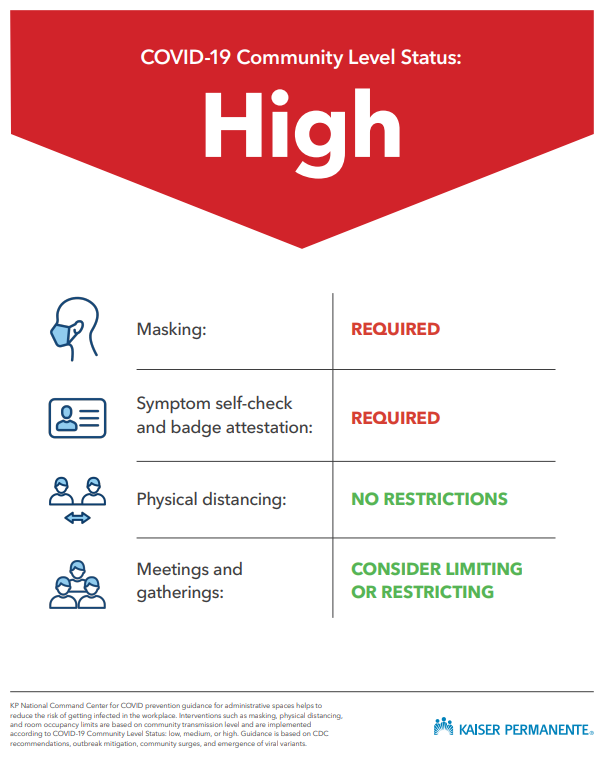
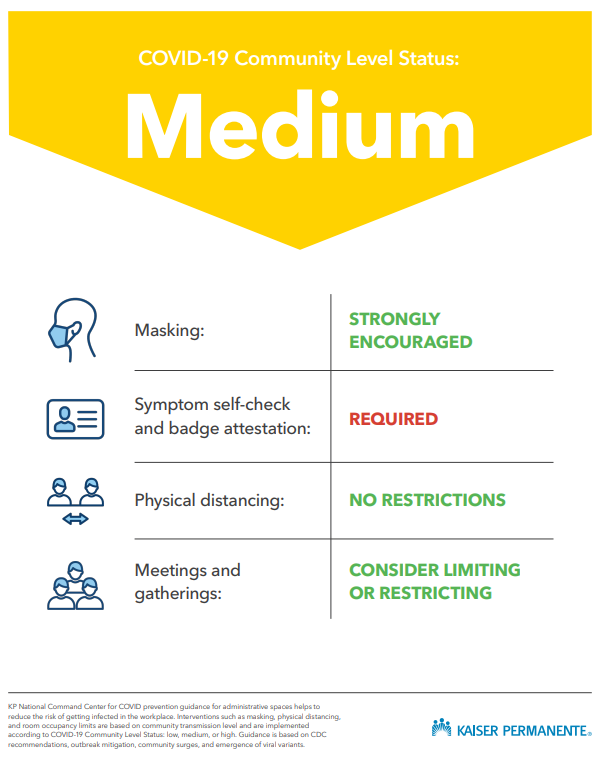
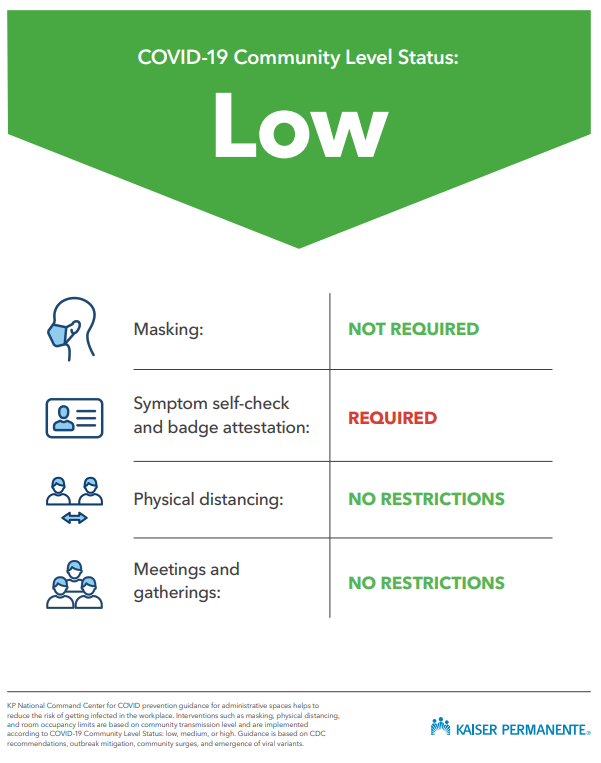
Planning to come into the office?
Learn about how to reserve a desk, office, conference room, or team room. Also, check out this list of what you need to do before you plan to come into the office.
Reserving a hotel space
Flexible and remote employees can reserve a workspace when they need a dedicated desk or office for the day.
Following KP’s national administrative space policy, only employees who are assigned “on-site” are eligible for an assigned desk,.
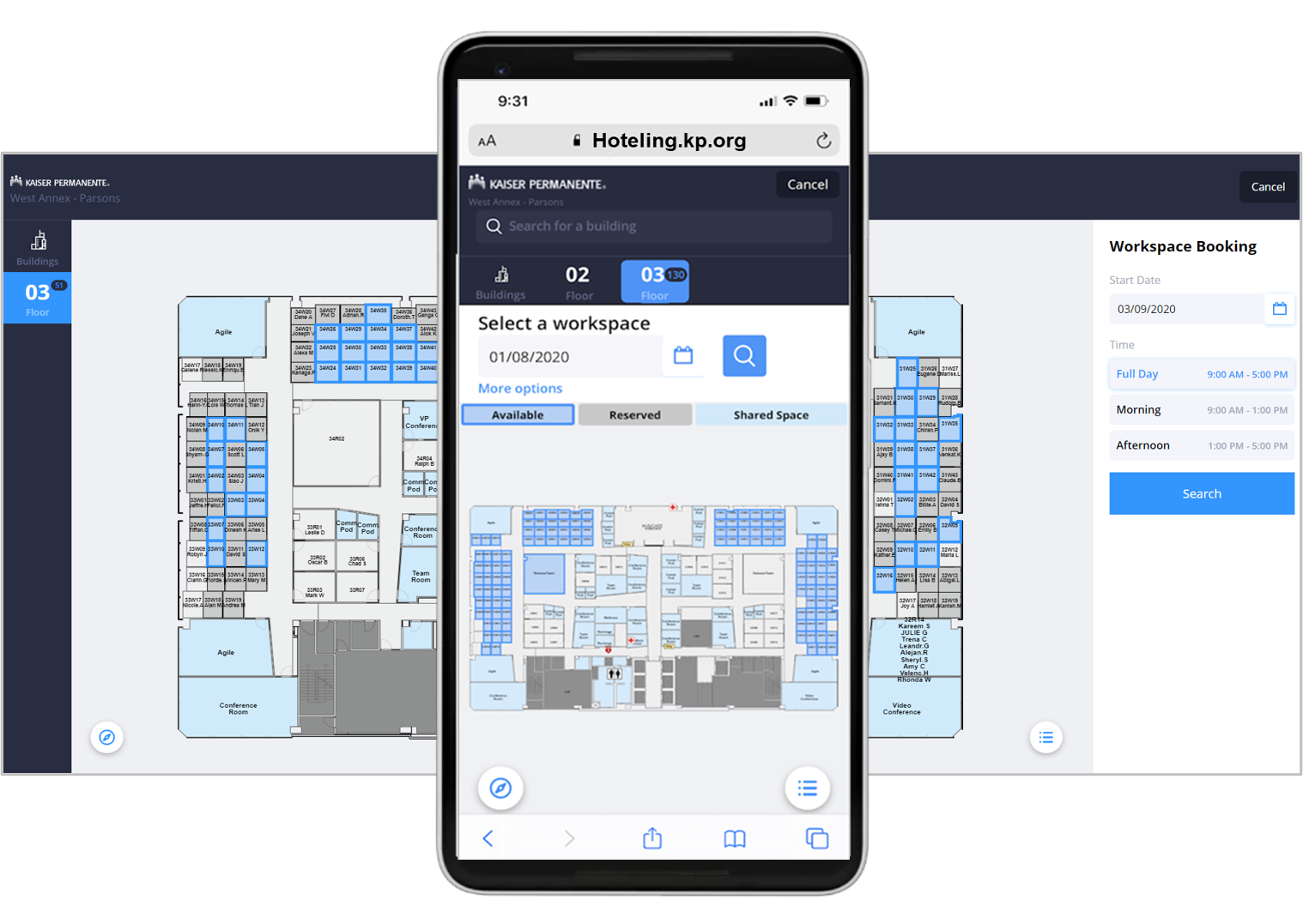
The hotel reservation tool is a web-based platform that works on any device, at anytime, with intuitive features to speed up the reservation process.
Reserving your desk should only take a few seconds.
New feature! You can now filter your hotel desk and office search by amenity! Learn more.
At a glance
- You can reserve 14 calendar days in advance, and keep 6 reservations in the system
- You can find a colleague and sit near them
- Reserve morning, afternoon or full-day
- Check in up to 1 business day in advance
- Reservations auto cancel if you do not check in
- The tool defaults to your assigned building for quick reservations and you can also search other available buildings
- Offices are for director-level employees and above only
- Admins can reserve for others (*by request)
Quick “how to”
Go to the Hotel Reservation Tool link.
Use your single sign-on to log in.
Click “RESERVE HOTEL SPACE”. Find an available desk on the map.
The tool defaults to your assigned location. You can also search for a building.
You can filter your search by amenity using the filter on the right panel.
Choose a space. Click “Reserve”. You will receive a confirmation email!
For your mobile phone, you can add the tool to your home screen like an app. Do this after you first log in.
Watch this 4-minute video for beginners on how to use the tool.
If you have issues or questions, email flexkp@kp.org.
Reservation info
The reservation tool allows up to 6 days of reservations (plus the current day’s reservation you have confirmed), 14 calendar days in advance.
There are 3 types of reservations, each with check-in times. You may reserve a desk in advance or when you arrive.
- All day: check in by 9 a.m.
- Morning: check in by 9 a.m.; vacate by 12:30 p.m.
- Afternoon: begins at 1 p.m.; check in by 2 p.m.
Check in is not required if you reserve on the same day you arrive. Please release your reservation if you don’t need it so others can reserve.
Hotel offices are available at the director-level and above.
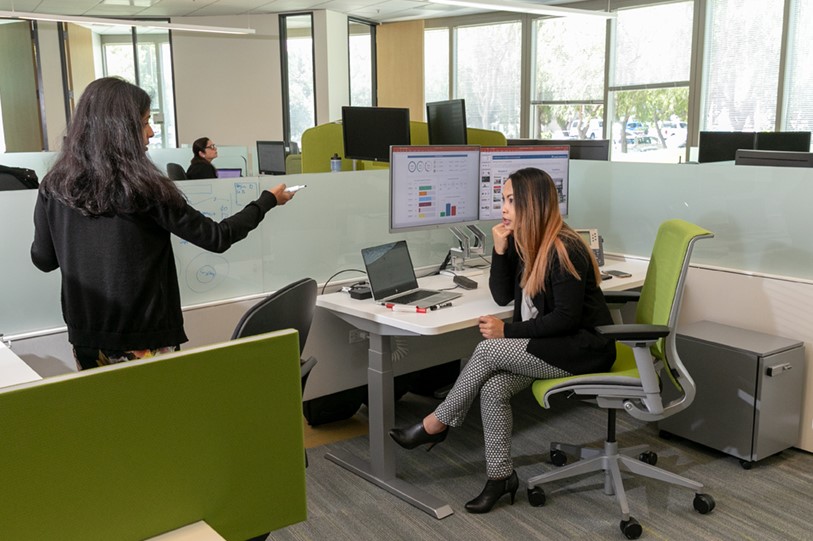
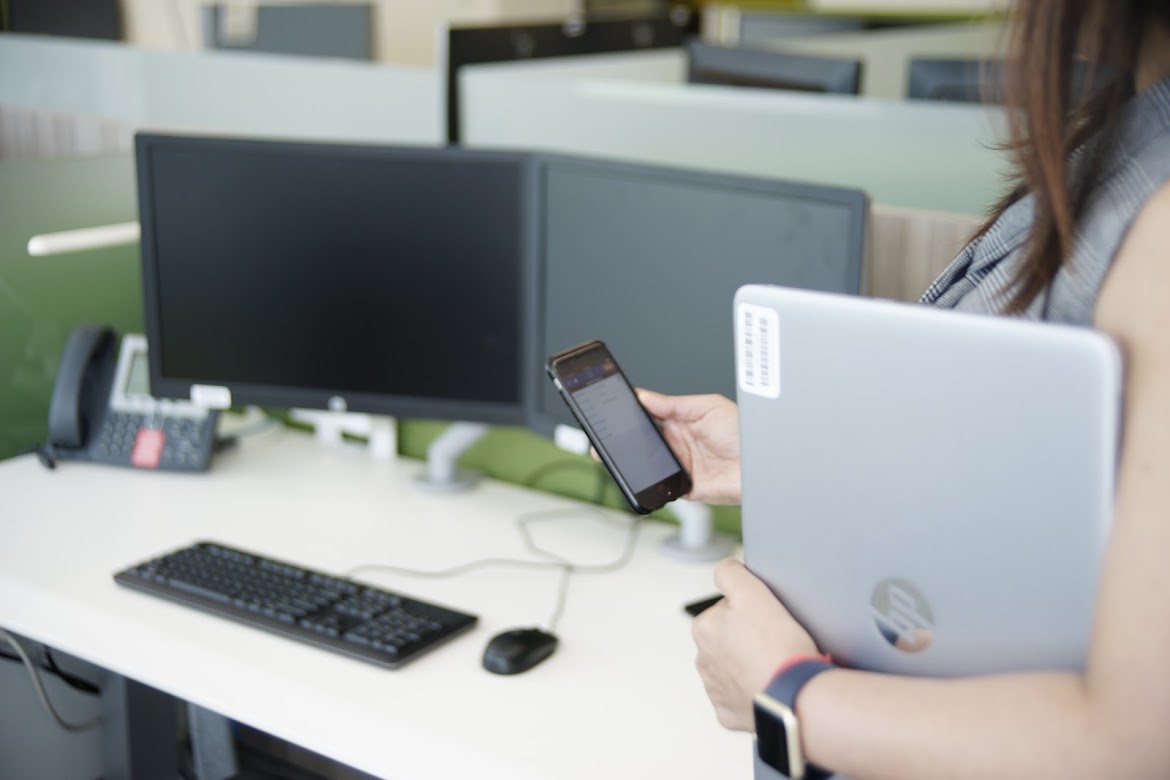
Each hotel space has universal docking and power, monitor(s), and a keyboard and mouse.
Reserving a hotel for another person
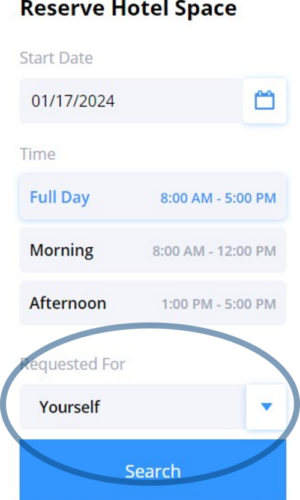
If you are a reservation assistant, you can book a hotel for other employees in any building within the hoteling tool.
- Go to the Hotel Reservation Tool link.
- Click “RESERVE HOTEL SPACE”.
- Under “Requested For”, select “Other Employee” in the drop-down menu.
- Enter the other employee’s name or NUID at the top of the screen and click return. Tip: Using the NUID will help more accurately identify the staff name you may be searching for.
- Select the staff name from the search results.
- Click on the “Search” button to reset the floor plan to show available workspace. (If the employee is a director or above, offices will show as available to reserve.)
- You may also need to search for the building/floor in the search field.
- Make the reservation as usual.
- The employee that you are reserving for will receive a confirmation email and so will you!
- You can confirm the reservation on their behalf from the email you receive.
New Feature!
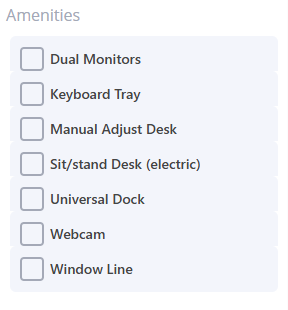
A list of workplace amenities is available now in the reservation tool. You can now filter your search for hotel desks and offices. This new feature is available in Northern California, Southern California, and Georgia. Availability for the remaining markets will be added over time.
Conference rooms
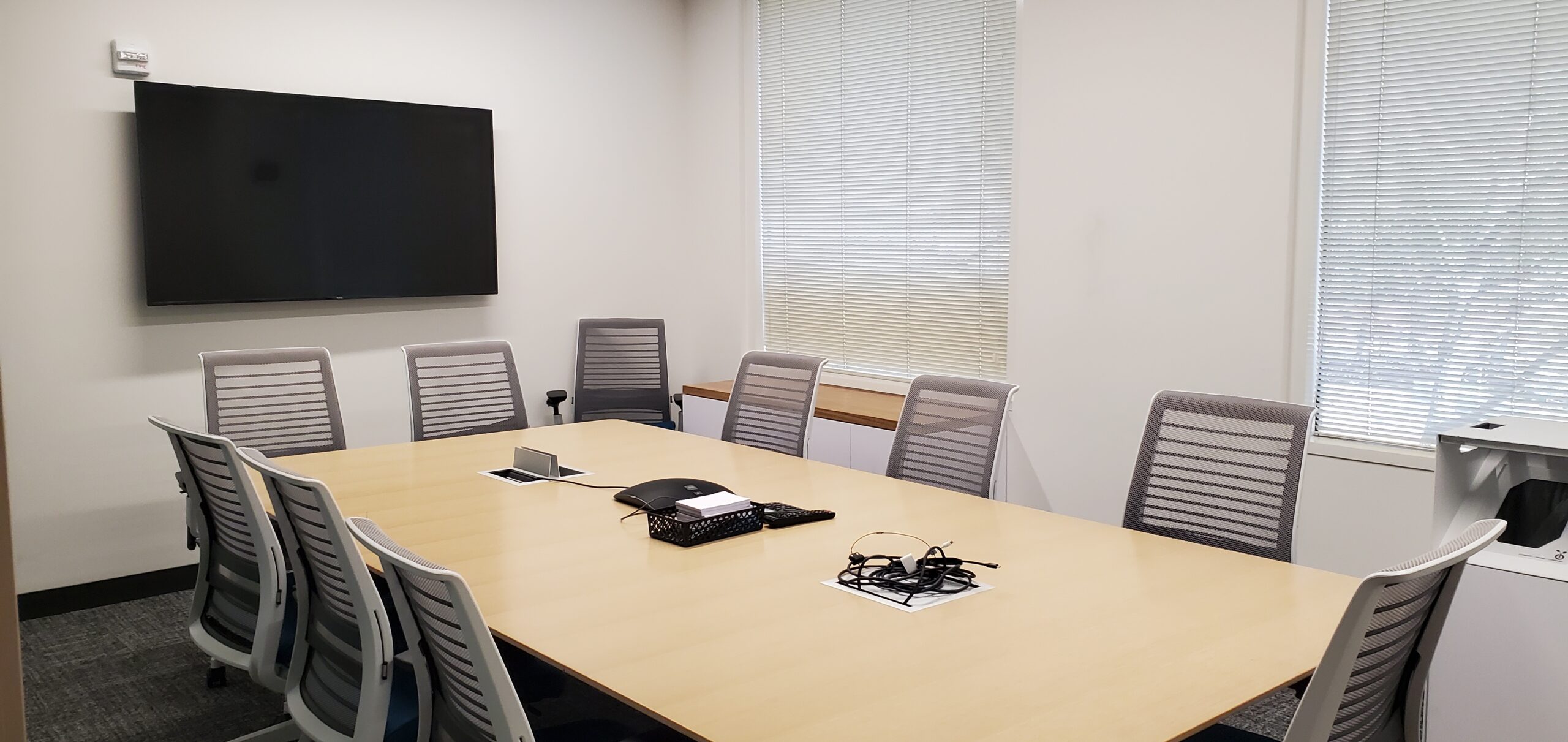
Small and large conference rooms are for more formal, planned meetings. They are for teams to come together for shorter periods of time. Conference rooms are for meetings and gatherings that are a one-off or on a regular basis.
Located in each building, these meeting spaces can be reserved through your Outlook Calendar.
Reserving conference rooms in Outlook
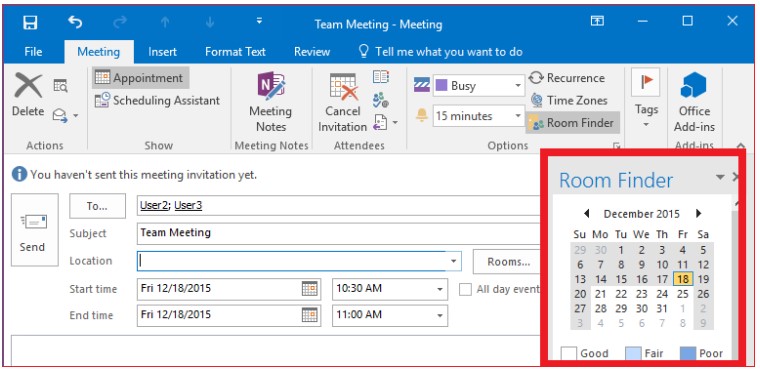
Room Finder is Outlook’s tool for locating and reserving rooms. The Room Finder tool appears in your meeting invitation when scheduling a new meeting or editing an existing one.
Finding “Room Finder”
In the Meeting tab of the meeting invitation you’re creating, Room Finder appears on the right-hand side of the screen. If you don’t see Room Finder when you open your meeting invitation, simply select Room Finder from the “Options” section in the ribbon at the top of your screen.
If you don’t see the Room Finder button in the ribbon, select Invite Attendees to from the top ribbon of the appointment. (Room Finder will only appear if you’re scheduling a meeting, not an appointment.)
Locating and reserving rooms
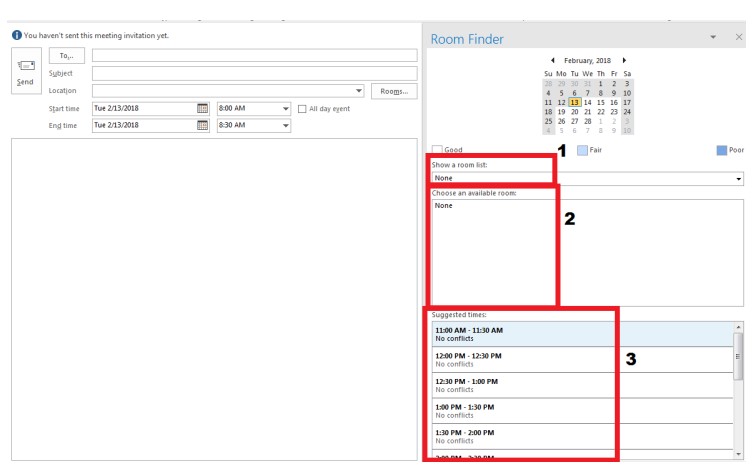
Click on the Show a Room List drop down menu in Room Finder to select the building in which you need a conference room. Buildings are organized alphabetically by location.
Once you’ve selected a building, a list of conference rooms that are available for the time of your meeting will display in the Choose an Available Room window. Selecting a conference room will add it as an invitee in the “To…” line of your meeting invitation.
If the timing of your meeting is flexible, you may choose to select a new time for your meeting from the Suggested times window. The Suggested times window shows the number of rooms available for the length of your meeting at different times throughout the day.
How do I know that my room has been successfully reserved?
After you’ve sent out your meeting invitation, you’ll receive an “Accepted” response from the available conference room’s mailbox.
Canceling a room reservation without canceling the meeting
To cancel a conference room reservation, simply remove the room from the “To…” list, add a new room if desired, and send the meeting update.